Creating a Call for Proposals
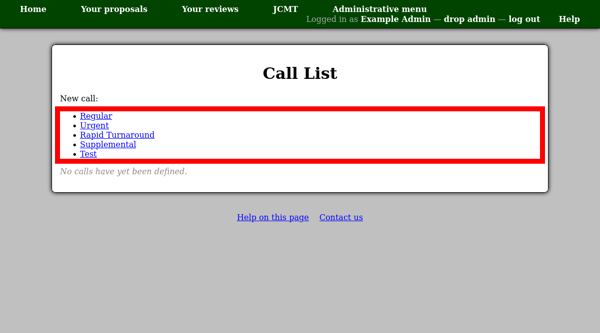
When you have prepared a semester and queue, you can combine them to open a call for proposals. From the facility administrative menu, select “Calls”. At the top of the call list page, you will find a list showing the different types of calls for proposals which you can open. Click the link for the type you wish to use.
Select the semster and queue at the top of the page and enter the range of dates when you want the call for proposals to be available. If the opening date is in the future, then the call will be hidden until that date.
This page also allows you to configure the word, figure and page limits for various parts of the proposal. If, for a given part, both a word limit and a PDF page limit are specified, proposal authors will have the choice of either entering text online or uploading a PDF file. If one of the limits is set to zero, only the other choice will be available.
The “technical case note” and “science case note” will be shown on the page where people will edit the corresponding part of their proposal. Therefore you can use these notes to indicate what is expected in each part. You may wish to include:
Elements you wish people to include in their proposal.
Additional constraints, such as the number of pages of text and figures when PDF files are uploaded.

The “Calls” page will then show a table of calls, indicating the status of each and giving links to pages about the call:
- View call
Takes you to the administrative interface for the call itself. From here you can edit the call or go to the list of proposals.
- View proposals
Takes you to a list of all proposals for the call.
- Review process
Takes you to the review process page for the call. This page is also accessible directly from the facility home page.

You can use the proposals page to navigate to any proposal which has been created for this call. A summary at the top of this page also indicates how many proposals are in each state.

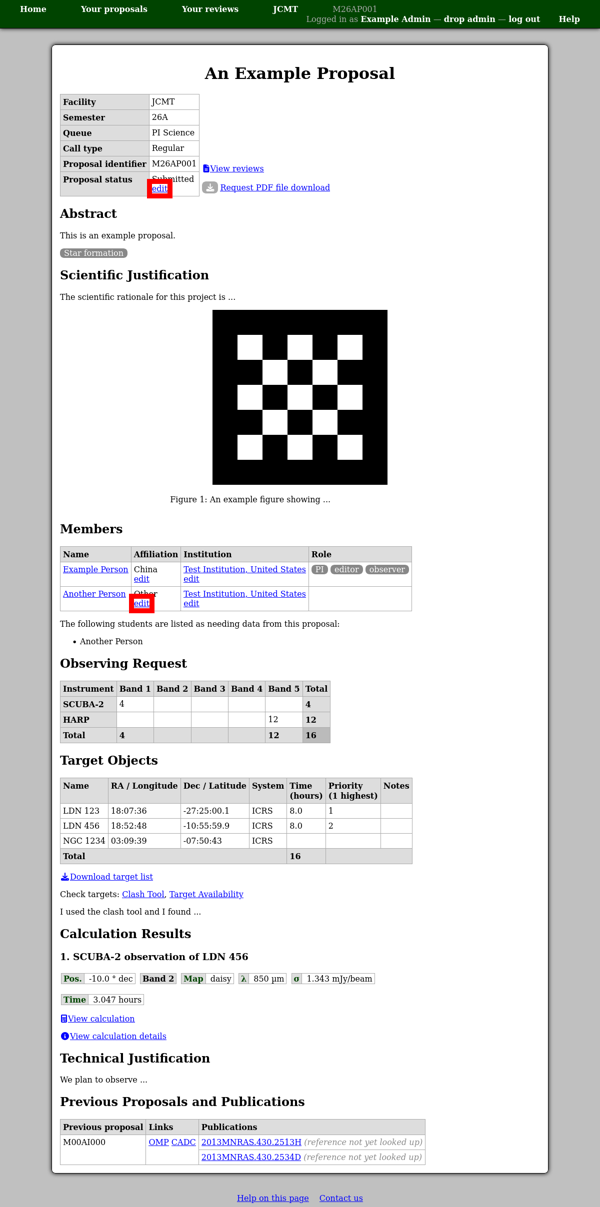
When viewing a proposal, you can edit the member affiliation if this has been entered incorrectly or manually change the status of the proposal. To do this use the link next to the current affiliation or status.
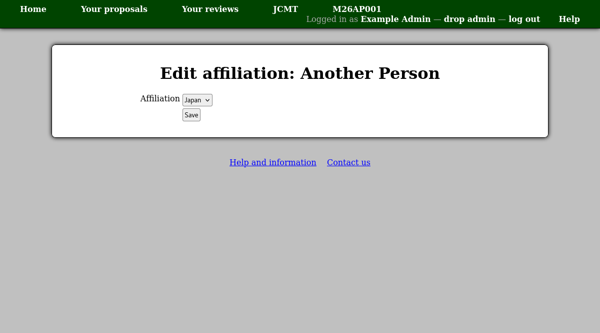
Editing an affiliation will show a new page where you can enter the correct affiliation for the proposal member in question.
Altering the proposal status also shows a new page where any proposal state can be selected. This should normally only be done in exceptional circumstances. Please read the notes on the alter status page itself before proceeding.
